
Aura FAQ
Hardware
Why is the battery draining quickly?
On the 10 minute update setting, the battery lasts around 10 days. The more often the device updates its location, the more battery it uses. For example, a device set to update every 2 minutes will need charging much sooner than one set to every 10 minutes.
The quickest fix is to change the update frequency:
- Open the app > Settings > Device Settings > Tracking frequency
- Choose a longer interval. For example, if it is set to 2 minutes, try 5 or 10 minutes.
If the battery still drains quickly, check these:
- Time away from home. If the device is outside the home zone for more than 2 hours a day, the battery will run down faster. This is because it uses more power to get GPS locations while it is moving.
- Home zone setup. When the device is at home, it should stay in one place on the map. If it keeps showing different locations around the house, the home zone may not be set up correctly. To fix this, set the home zone up again while you are at the user’s house and connected to their Wi-Fi.
How do I switch the device off?
We don’t recommend turning the device off as you’ll miss out on its functionality including SOS calls and GPS tracking.
However, if you want to switch off the device, please do the following:
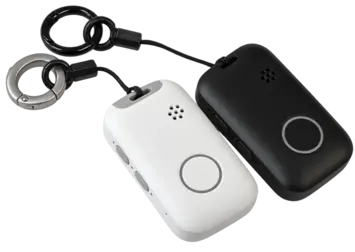
- Press and hold the SOS button and the top side button (which has a phone icon)
- Hold for 3 seconds until the device vibrates and all the lights switch off.
How do I reboot the device?
To reboot the device, you can do the following:
- Press and hold the SOS button and the top side button (has a phone on it) for 3 seconds and the device should vibrate.
- Once you’ve done that, you can either place the device back on charge or press and hold the top side button for a few seconds for it to turn back on.
- The lights on the side will start flashing when it turns back on.
How long do I have to press the SOS button?
Press and hold the SOS button for 3 seconds to make an SOS call. Once the SOS call has been activated, the device will flash red.
What do the buttons on the side do?
These are mainly used for turning the device on/off. However, the button with the phone icon on it can be used to make a phone call to a specific user if necessary. If you would like this to be added, please get in touch with customer support.
Is the device waterproof?
Yes. The device is IP67 waterproof. This means it can be taken in the shower or submerged in water if necessary. We do not recommend pressing the buttons or doing this regularly, though, to preserve the device’s lifespan.
Tracking
How do I use the map?
To view tracking, go to the map screen. The purple person icon is the wearer’s latest location.
To move the map around, press and drag your finger on the map.
If you need to zoom into the map, you can either press the cross hair icon to zoom in on the wearer’s location, or you can place two fingers and drag inwards to zoom in or outwards to zoom out.
How do I look at the history?
The history can be viewed via the map screen.
Firstly, open the map screen and press History Log.
Here you can view past locations either from the whole day, or the last few hours.
If you want to view locations from a specific day, you can press on Today and it’ll allow you to choose a specific day to view the tracking from the past 30 days.
Pressing the play button will allow you to play through the wearer’s route as they took it.
I took the device in a car/vehicle/bus/train and it didn't track?
Every tracking device available is less accurate indoors and in vehicles, unfortunately this is just a limitation of the technology which is out there at the moment and is not limited to this tracker.
This is because when a tracker is indoors or in a vehicle, due to the building materials it struggles to get all 3 satellites required to pinpoint an accurate location, therefore it will be less accurate.
However, when the tracker is outdoors in an area with sufficient mobile signal, there shouldn’t be any issues.
What's emergency tracking?
Activating emergency tracking changes the tracking frequency to every 30 seconds.
If the user is wandering and you need to find them as soon as possible, activate emergency tracking and you’ll get faster, more regular updates to help find them as quickly as possible.
Why is the Safe Zone going off when they're indoors?
If they’re at home, make sure to check that the home WiFi location is set up correctly. This will help prevent Safe Zone alerts while they’re around their home.
If you’re seeing constant location updates around a place that the user visits, you may need to increase the size of the safe zone. This will allow you to be sure that the user has left the home before the safe zone notification goes off.
How often does the device track?
The Tranquil Aura is set to update every 2 minutes by default. This should last 3-5 days depending on how often the device is taken out of the home.
If you need the device to last longer, you can change the tracking setting in the device settings. If you change it to every 5 minutes, it should last up to a week and if you change it to every 10 minutes, it should last up to 10 days.
Calls
Can I call the device?
Yes, just make sure that your phone number is in the device’s Trusted Contacts. If your phone number is not in there, you’ll need to add it to make a call.
Once you’ve added it, go to the Dashboard and press the call button.
Why won't my device make a phone call?
There needs to be a phone number in the phonebook to make a call. It also needs to have ’emergency contact’ enabled.
Without this, the device does not know what number to call.
If the number is in the phonebook, keep trying to make the phone call in case the device cannot connect in time. If you consistently need to make multiple phone calls to make the call successfully, please contact us.
Why does it call all the numbers in the phonebook?
If you select all devices as emergency numbers, then the device will call each number one-by-one. If you don’t want all your contacts to be called in an emergency, make sure that they do not have emergency contact selected.
Call settings can be customised, for example if you want it to loop through each contact more than once, ring before answering or call every emergency contact regardless of whether the call is answered or not, please get in touch with support.
How do I stop an SOS call if I press it by accident?
To cancel an SOS call, simply press the SOS button twice to stop the call.
Alerts
Why does it say my device is offline?
A device being offline means that the device is unable to update.
This happens when either the device has switched off, or the signal is poor.
If the device’s signal is poor shortly before going offline, this means that the device is in a poor signal area and it will come back online once the signal is better. This shouldn’t take long (depending on where they are).
If the device has run out of charge, the device will go offline shortly as it won’t have enough power to send any locations. This can be resolved by placing the device on the charger.
Why does it take so long to alert me that they've left home?
The tracking frequency determines how often the device updates.
If your device is set to update every 10 minutes, it’ll let you know that they’ve left the home after 10 minutes (it might be earlier).
To be alerted faster, set the device to update every 2 or 5 minutes.
Still have questions?
Get in touch!